If the quantity of a Gucci item shown on the fashion-reps product page doesn't match the quantity in your cart, don't proceed to checkout or click Buy repeatedly. This issue needs to be examined in two places: fashion-reps is responsible for displaying product information and handing the Buy action over to the currently selected shopping agent, while the cart and order details are usually handled further on the selected agent's page. Therefore, a quantity
Editor score 4.2 / 5
If the quantity of a Gucci item shown on the fashion-reps product page doesn't match the quantity in your cart, don't proceed to checkout or click Buy repeatedly. This issue needs to be examined in two places: fashion-reps is responsible for displaying product information and handing the Buy action over to the currently selected shopping agent, while the cart and order details are usually handled further on the selected agent's page. Therefore, a quantity mismatch doesn't necessarily mean the fashion-reps product page itself is malfunctioning.
This article addresses only one problem: a mismatch in the quantity shown on the product page versus the cart. After completing verification, you should be able to determine whether the discrepancy occurred on the product page, in the redirect parameters, in the cart line items, or from duplicated entries caused by refreshing and re-adding the item. The following steps do not apply to situations where payment has already been made, the item has entered the warehouse, or the order status is changing; in those cases, keep the order number and contact the corresponding shopping agent support directly. 🔎
What Does This Gucci Quantity Issue Troubleshooting Aim to Resolve?
You need to answer three questions:
- How many pieces were actually selected on the product page, and which color, size, and style were chosen?
- Did multiple line items for the same product appear in the cart, or was the quantity field on a single line item changed?
- Did the quantity mismatch occur before redirecting to the cart, or after the cart loaded, refreshed, or the item was re-added?
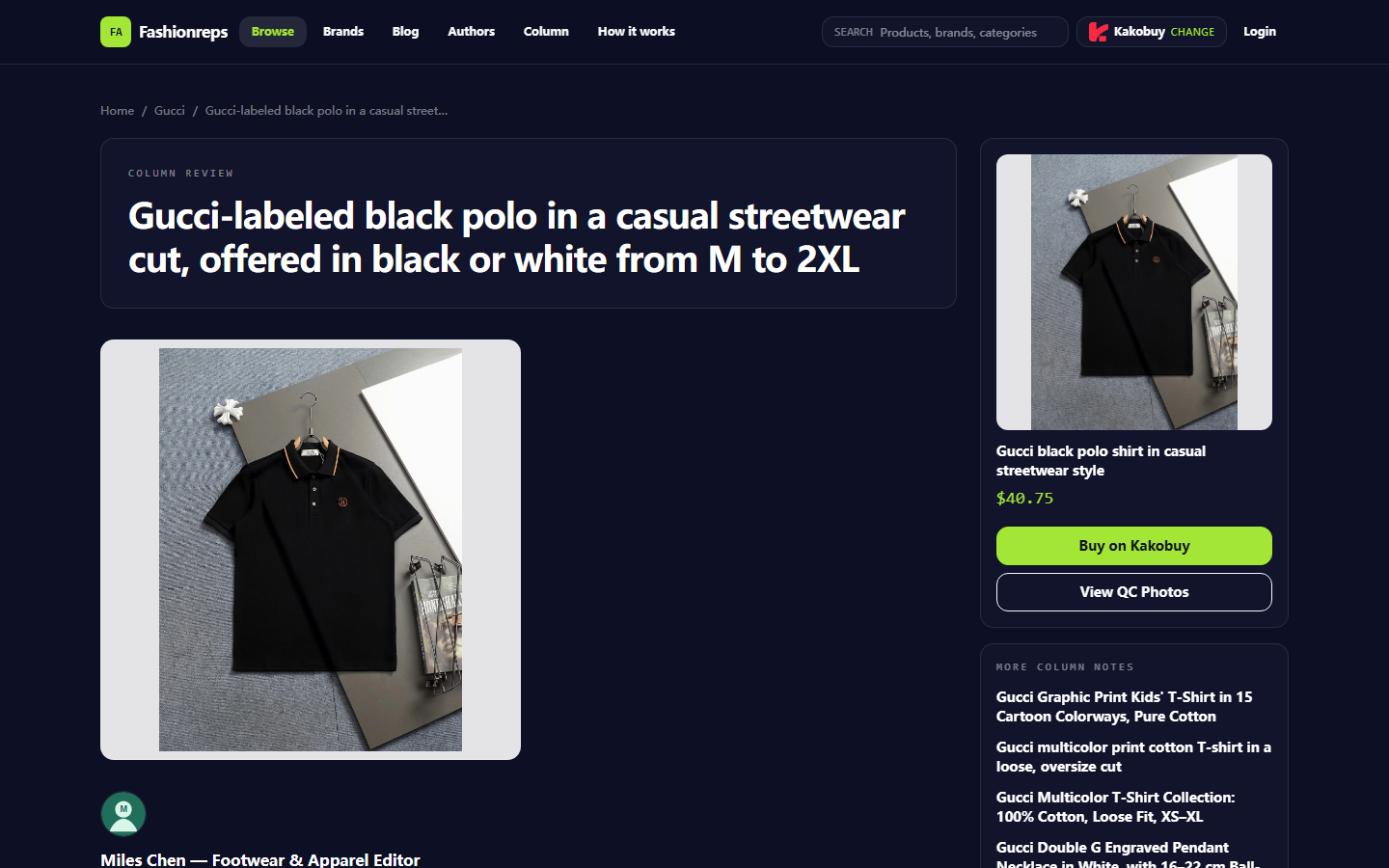
The product page on fashion-reps displays catalog information such as product title, color, and size, and passes the Buy action to the selected shopping agent through buttons like "Buy on Kakobuy." The page also offers "Change shopping agent" to switch agents. Therefore, when checking, you must also record the name of the currently selected shopping agent, not just the product title.

Caption: The product page example is used to confirm the style, color, size, and shopping entry. Image source: fashion-reps product page; the information on the page should be based on what is actually displayed when you open it.
First Save the Style, Color, Size, and Quantity from the Product Page
Before refreshing the page or clicking Buy again, first save a record that does not change the page state. You can take a screenshot or manually transcribe the following fields:
- Product title, especially Gucci, style name, and color description.
- The color options displayed on the page, such as black or white.
- The size range displayed on the page, such as M, L, XL, or 2XL.
- The color and size you actually selected.
- The current value in the quantity selector.
- The name of the currently selected shopping agent.
- The product price displayed on the page, and the time the page was displayed.
- The full browser URL or page title of the page where the Buy button is located.
If the product page shows only one item but the quantity selector already displays two or more, record that state first. Do not click the minus, plus, and Buy buttons repeatedly to "reset" it. Consecutive actions will make it difficult later to determine whether the quantity in the cart came from the original selection or from duplicate submissions.
Also check whether multiple product page tabs are open at the same time. One tab may have selected black, and another may have selected white; if both tabs are added to the cart separately, two similar line items in the cart do not necessarily mean a system duplication.
How to Check Cart Line Items and Quantity Fields Item by Item
After entering the cart of the current shopping agent, do not click checkout first. Compare the cart contents with the product page record item by item, focusing on the line items rather than the total number of items at the top of the page.
You can check in the following order:
- Whether the product title matches. Note that the title may have been reorganized by the shopping agent, and slight differences in text do not necessarily mean a different product.
- Whether the product image or thumbnail corresponds to the same style. Images can only assist in identification and cannot serve as proof of brand, material, or stock.
- Whether the color, size, and other variant fields match.
- What the quantity field is on the right or below the line item.
- Whether there are completely identical line items, each with a quantity of 1.
- Whether there is a combination of one line with quantity 2 and another with quantity 1.
- Whether the item subtotal changes according to quantity, or only the total price area changes.
- Whether the cart marks the item as out of stock, variant invalid, needs re-selection, or requires confirmation.
Quantity anomalies can be classified by evidence first:
| Observed phenomenon | Priority verification direction | Pause condition |
|---|---|---|
| Product page shows 1 item, but cart has two identical line items | Whether Buy was clicked repeatedly, multiple tabs were open, or the item was re-added | Do not delete one line or continue to checkout before confirming |
| Product page shows 2 items, but cart has only 1 | Whether the quantity parameter was lost during redirect, or the cart created a single item | Do not add 1 more item to "make up for it" |
| Quantity matches between product page and cart, but subtotal differs | Whether price, service fee, discount, or currency display are calculated separately | Do not treat price changes as quantity changes |
| Cart quantity briefly changes, then returns after refresh | Whether page loading, session, or cart save state is stable | Save screenshots before and after the refresh before deciding to operate |
| Line item has a different color or size | Whether different variants were actually selected | Do not merge line items based on similar titles |
If the cart has select-all, batch delete, or batch checkout buttons, do not use them first. Batch operations will change multiple line items simultaneously and reduce the readability of the evidence. 🧾
What Changes to Record When Refreshing, Going Back, and Re-adding Items
Refresh and back operations may change the page state, but they cannot be used to prove which state is the correct one. Each operation should record the results before and after, at least including the time, line items, and quantity fields.
It is recommended to follow this sequence:
- Screenshot the current cart without changing quantities or deleting items.
- Record the quantity, color, size, and subtotal of the relevant line items.
- Refresh the page only once and wait for it to fully load.
- Record the same fields again, and mark whether the quantity has changed.
- If the quantity changes, stop refreshing and keep evidence from both time points.
- When returning to the product page, only check the original selection; do not click Buy immediately.
- Only consider re-adding if you confirm the cart does not have the correct line item and payment has not been made.
Before re-adding, first check whether the cart already has the same style. If there is already a suspected duplicate line, do not test whether the system will "automatically merge" by clicking Buy again. This may create a third line item or make it impossible to distinguish the original anomaly from the new duplicate operation.
If you do need to re-add, first record the state of the old line item, then add it once with a specific color, size, and quantity. After adding, only check whether the new line item appears; do not check out immediately. For the same style in different colors or sizes, you must keep the variant information separate; you cannot determine they are the same based solely on the Gucci product title. ⚠️
How to Judge Quantity and Price Changes Separately
Quantity and price are two different verification issues. A change in the cart total amount cannot alone prove a change in item quantity, because the amount may also be affected by service fees, exchange rates, discounts, shipping estimates, or page recalculations.
It is recommended to record separately:
- Line item quantity: the number of pieces for each line.
- Line item unit price: the price displayed for a single item.
- Line item subtotal: the line amount after multiplying unit price by quantity.
- Service fees or agent fees: if the shopping agent displays them separately, record them separately.
- International shipping and taxes: if you have not yet entered the delivery step, do not write estimated amounts as final costs.
- Currency: e.g., USD or whatever currency is actually displayed on the page.
- Page state: initial cart load, after refresh, after variant re-selection.
If the quantity changes from 1 to 2 and the line item subtotal nearly doubles, that only shows the page calculation is consistent with the quantity change; it does not prove the duplicate item was added intentionally. Conversely, if the quantity shows 1 but the subtotal changes significantly, give priority to checking the price, fees, and currency rather than continuing to modify the quantity.
Do not infer the final amount due in the cart from the reference price on the product page. The product price on the fashion-reps page, the shopping agent's service fee, and international shipping costs may belong to different stages, and the final amount should be based on the current shopping agent's order details. Any taxes, customs clearance fees, and return/exchange conditions should also be based on the official explanations provided by the destination country and the shopping agent at that time.
How to Avoid Duplicate Order Submission When Page Evidence Is Insufficient
Stop submitting the order if any of the following occurs:
- The cart has two Gucci line items that cannot be confirmed as duplicates.
- The color or size in the product page record does not match the cart fields.
- The quantity changes after refresh but no screenshot or page time was saved.
- The product title in the cart differs from the product page and cannot be confirmed through image, color, or size.
- Price changes occur simultaneously with quantity changes and cannot be separated by cause.
- The page shows out of stock, invalid, needs variant re-selection, or other abnormal prompts.
- You are unsure which shopping agent the current cart belongs to.
- The quantity shown on the checkout page differs from the cart page.
Do not use the approach of "pay first and then check if the order is correct" to verify quantity, and do not submit two suspected correct orders simultaneously to avoid missing out. This will turn an observable page problem into a payment, cancellation, refund, or after-sales issue, and may increase service fees, exchange rate differences, and subsequent processing time.
If you have accidentally clicked Buy multiple times, keep the cart as is and do not delete items immediately. Record each line item, quantity, variant, and page time, then decide whether to handle it through the shopping agent's cart editing function. Deletion may be irreversible and will reduce the evidence needed by support staff to trace the source of duplication.
When to Contact Official Support and Organize Screenshots and Page Times
If after one refresh and one check back on the product page the quantity still does not match, contact the shopping agent that actually handles the cart and order, rather than assuming the fashion-reps product page is malfunctioning. When contacting, explain which shopping agent you used to enter the cart from the fashion-reps product page, and provide minimal but sufficient evidence.
It is recommended to prepare:
- Product page screenshot: including product title, color, size, and quantity selector.
- Cart screenshot: including relevant line items, quantities, variants, and subtotals.
- Screenshots before and after refresh: if the quantity changed, arrange them chronologically.
- Current shopping agent name.
- Page record time and time zone.
- Whether you clicked Buy, went back, refreshed, or re-added.
- Whether you have made payment, submitted the order, or entered the warehouse process.
In screenshots, cover names, addresses, phone numbers, payment card information, full order numbers, login emails, and other personal information. Only keep the parts needed for support staff to determine the line items, quantities, and page state. Do not publicly share full shipping labels, passports, or payment receipts. 🔐
If you need to copy page text, prioritize copying the product title, quantity, variant, and error messages, and do not send unnecessary account information. When support staff cannot confirm, do not repeatedly submit the same order; you can wait for them to confirm the cart record before deciding to re-add the item.
Stop Actions and Next Steps After Verification Is Complete
Verification is complete only when the product page record, cart line items, and quantity fields match, and the state does not continue to change after refresh. At this point, also check the color, size, item subtotal, and current shopping agent again to confirm they belong to the same order path.
Verification results can be handled as follows:
- If quantity matches, variants match, and price only changes according to fee items: stop quantity troubleshooting and enter the shopping agent's normal order confirmation process.
- If quantity does not match and payment has not been made: stop ordering, keep screenshots, and contact shopping agent support to confirm the cart record.
- If duplicate line items appear: do not guess which line to delete on your own; first record the differences between the two lines and confirm whether they were caused by duplicate clicks.
- If payment has already been made: stop modifying the cart, instead save the order details and contact order support, and do not pay again.
- If the product page information is insufficient to confirm style, color, or size: stop quantity operations and request explicit variant confirmation from the seller or shopping agent.
The actual benefit of this method is not to guarantee the cart will automatically fix itself, but to avoid a second duplicate submission from one quantity anomaly. It is suitable for use when payment has not been made, product variants are still viewable, and page evidence can be saved; it is not suitable for situations where the item has entered the warehouse, the order is locked, or the page cannot load at all. After recording, close unused product tabs, keep a final cart screenshot, and then continue only along the confirmed order path.
Article Images

Nadia Vermeer is Editor-in-Chief at Kakobuytop, running the testing desk, writing agent workflow guides and signing off every score. Nadia personally opens roughly half the parcels that reach the desk, while running its seven-step sequence and maintaining each parcel's master file. Order timestamps, agent replies, QC images, line choice, tracking logs, delivered weight and the score sheet form that record. Every received item is compared with full-size warehouse QC photos before scoring; listing photographs alone do not qualify a product for a score, and articles are held until the parcel arrives.